The Form UX Patterns That Actually Get More Submissions
Four changes move the needle more than anything else: single-column layouts, inline validation, trimmed required fields, and progress indicators on multi-step forms. Apply even two of them and you'll likely see a real lift in completions — no redesign required.
That direct answer matters because most small-business owners are losing leads right now, and the offer isn't the problem. The form is. A contact form that demands eight fields when three would do, or one that waits until the user hits Submit to flag an error, is a quiet conversion killer dressed up as a help page.
What follows breaks down each pattern, explains why it works behaviorally, and gives you concrete steps you can hand off to a developer or tackle yourself. No vague best practices — just the specific moves that actually change outcomes.
Why Do Users Abandon Forms Before Submitting?
Abandonment almost always traces back to one of three things: unexpected effort, a loss of trust, or a moment of confusion the user decides isn't worth pushing through.
- Unexpected effort: Someone opens your form expecting thirty seconds and finds a twelve-field questionnaire. That gap between expectation and reality is exactly where people leave.
- Lost trust: No privacy note near the email field, a phone number marked required for no obvious reason, a design that looks like it hasn't been touched in years — all of these signal risk to a user who's already a little skeptical.
- Friction at the error moment: 'Invalid input' after hitting Submit forces users to hunt for the problem. Many just leave instead.
A pattern we keep running into with professional services clients: a law firm intake form with eleven required fields was hemorrhaging drop-offs around the fourth field. Cutting to five required fields and tucking the optional ones behind a 'Tell us more (optional)' disclosure nearly doubled their completion rate — same ad spend, same copy. The form was the entire problem.
If you haven't already done a structured pass on your site, our guide to website usability testing for small businesses walks you through how to spot these issues without a big budget.
Use a Single-Column Layout — It Is Not Just an Aesthetic Choice
Multi-column forms look tidy to a designer and create a scanning problem for everyone else. Eye-tracking research consistently shows that a vertical, single-column layout cuts cognitive load because the reading path is predictable: straight down, not across-then-down.
Here's what to do:
- Stack every field top to bottom, even when you have room for two columns on desktop.
- Put labels above the input — not inside it as placeholder text. Placeholder text vanishes the moment someone starts typing, and that's genuinely disorienting, especially for older users.
- Left-align your submit button with the form fields rather than centering it. It lands naturally in the reading flow.
- On mobile, inputs should be at least 44px tall. This is a WCAG guideline and a real usability fix, not just a compliance checkbox.
Single-column works even for complex forms. A multi-section quote request stays scannable when related fields are grouped under a clear section header and stacked — not broken into side-by-side columns because there's whitespace to fill.
Inline Validation: Fix Errors as They Happen, Not After
Traditional form validation works like a teacher who collects homework, grades the whole thing, and hands it back covered in red marks. Inline validation is the teacher who quietly corrects you as you write — same information, far less frustration.
With inline validation, the form checks each field as the user moves to the next one and communicates immediately, before the Submit button ever gets clicked.
Implementation notes:
- Validate on blur — when the user leaves a field — not on every keystroke. Keystroke-level validation on a name field feels aggressive.
- Show green checkmarks for valid entries, not just red for errors. Positive feedback keeps momentum going.
- Write human error messages. 'Invalid format' tells someone nothing. 'Your email should look like [email protected]' removes the ambiguity instantly.
- For phone fields, auto-format as the user types — '555' becomes '(555)' — so errors get prevented rather than flagged after the fact.
The technical lift here is low in any modern framework. If your site runs on WordPress, most contact form plugins support inline validation natively. There's no good reason to leave it off.
Cut Your Required Fields — Your Users Will Thank You
Every required field is a small decision you're forcing on the user. Each one spends a little of their willingness to continue. The goal is to ask only for what you genuinely need at this stage of the relationship — before trust is fully established.
Try this: go through your form right now and ask, 'If I don't have this information, can I still follow up with this person?' If yes, make it optional or cut it entirely. You can collect more during the sales conversation, after you've earned a little trust.
For most small-business contact and quote forms, the minimum viable set is:
- First name (or full name)
- Email address
- One open-text field for their question or project description
Phone number, company name, budget range, timeline — all of that can live behind an 'Optional info' toggle or come up in your first follow-up email. The conversion that matters is the form submit. Everything else comes after.
This is one of the fastest wins available to a small business. You don't need a redesign. You need to delete fields. If you want a more structured way to find what else might be holding your site back, our UX design services cover exactly this kind of conversion-focused audit.
Progress Indicators Make Long Forms Feel Shorter
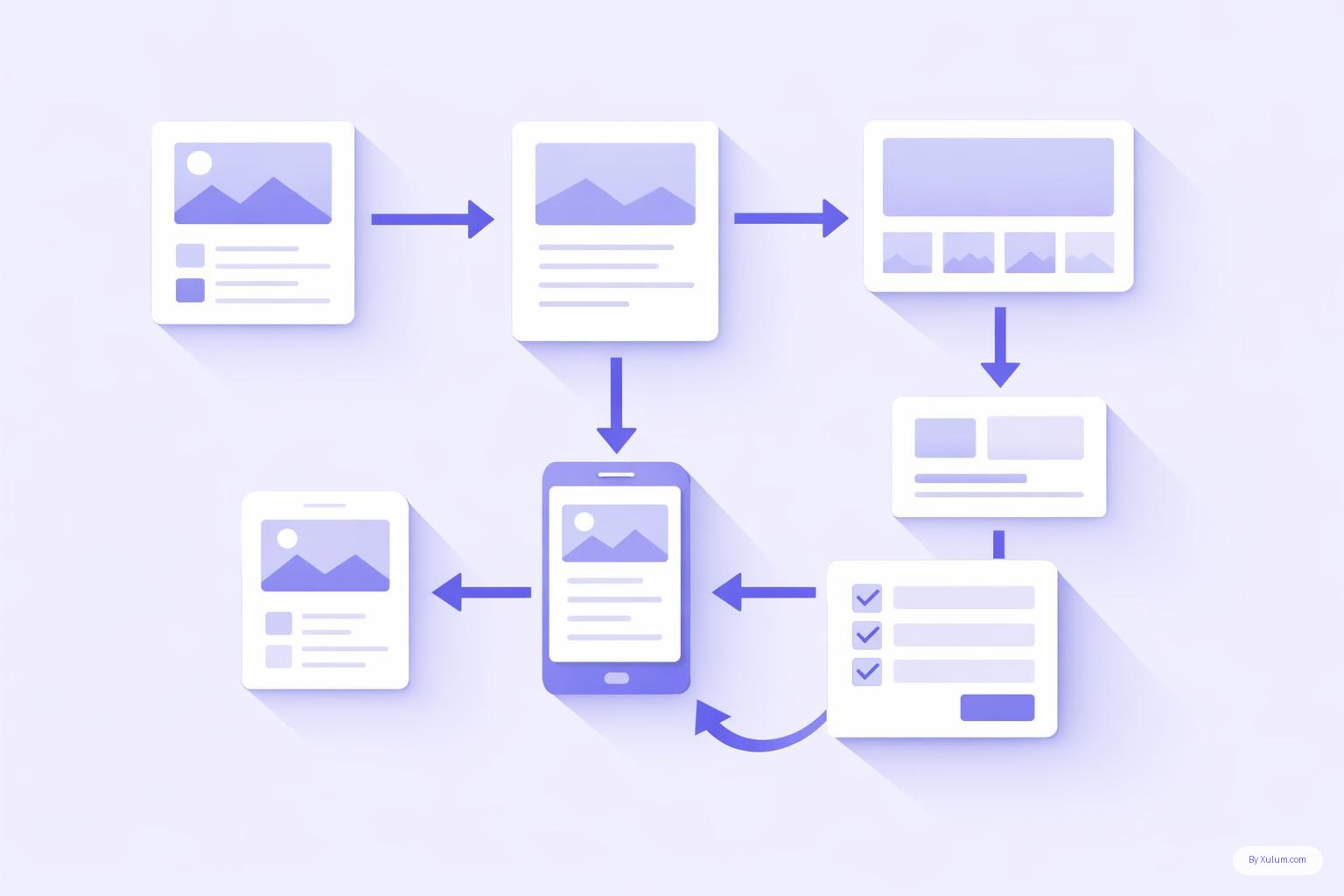
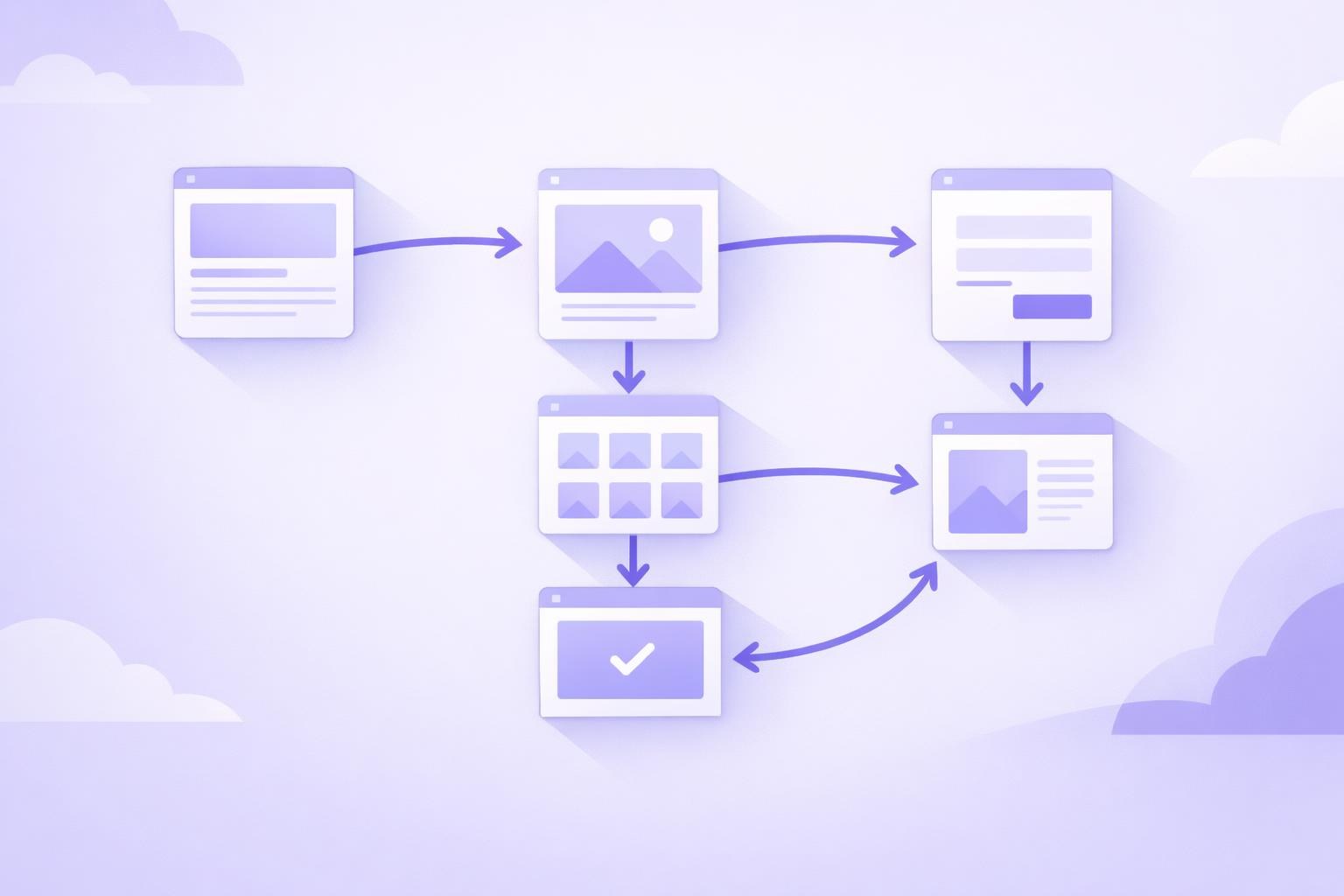
Sometimes a long form is unavoidable — insurance quotes, project intake, custom orders. When you genuinely need a lot of information, breaking it into steps with a clear progress indicator almost always beats one long scrolling page.
Why it works: people are far more willing to invest effort when they can see how much is left. 'Step 2 of 3' eliminates the anxiety of an unknown endpoint. Psychologists sometimes call this the goal gradient effect — people speed up as they get closer to a visible finish line. It works on forms the same way it works everywhere else.
Best practices for multi-step form design:
- Group logically related fields in each step. Don't mix contact info with project details on the same screen.
- Keep each step to five fields or fewer when possible.
- Show a step counter or progress bar at the top — 'Step 1 of 3' is enough. A visual bar is better still.
- Never make someone backtrack to fix an error from a previous step without pre-filling what they already entered.
- On the final step, show a summary before they submit. It builds confidence and catches mistakes before they become support emails.
We've set up multi-step forms for e-commerce clients doing custom orders and for B2B clients with complex service packages. The pattern consistently beats a single long form, and the gap is especially pronounced on mobile, where scrolling through twenty fields is its own kind of punishment.
What Trust Signals Should Sit Next to Your Form?
A form doesn't exist in isolation. What surrounds it shapes whether someone fills it out at all. Trust signals are the contextual cues that quietly answer the question every user is silently asking: 'Is it safe to give these people my information?'
Place these elements close to the form — in the same visual section, not buried in a footer or on a separate page:
- A brief privacy note: One sentence beneath the email field — something like 'We'll never sell your information. Unsubscribe any time.' It reduces hesitation at the most sensitive field on the form.
- A real name and face: A small headshot with 'Questions? Reply to Sarah — she checks this inbox every day.' That turns a form into a human interaction.
- Social proof in context: A short client quote placed next to — not above — the form. When someone's on the verge of submitting, a relevant testimonial reinforces the decision right when it counts.
- Response time expectation: 'We typically respond within one business day' sets expectations and cuts post-submission anxiety.
- Security indicator if relevant: SSL is standard now, but if you handle sensitive data, a visible security badge near the submit button still matters.
None of these require a design overhaul. Most can be added in an afternoon. That's a pretty good return on an afternoon.
How to Test Whether Your Form Changes Are Actually Working
Making changes without measuring them is just redecorating. Here's a practical approach to knowing whether your form UX improvements are doing anything at all.
Step 1 — Set a baseline. Before touching anything, record your current form completion rate. Google Analytics 4 lets you track form submissions as a conversion event. If that's not set up yet, do it first. You can't improve what you're not measuring.
Step 2 — Change one thing at a time. This sounds slow, but it's the only reliable way to know what's working. Cut three fields, add inline validation, and redesign the layout simultaneously and you won't know which change moved the number. Prioritize your highest-impact change first — for most small-business forms, that's trimming required fields.
Step 3 — Run a simple A/B test if your traffic supports it. Most landing page tools and some form plugins support A/B testing. If your traffic volume is too low for statistical confidence, use a session recording tool instead. Watching real users interact with your form makes drop-off points obvious fast.
Step 4 — Check mobile separately. Form abandonment on mobile is often considerably worse than on desktop. Filter your analytics by device type and look at completion rates independently. Mobile may need its own round of fixes entirely.
If you want to go deeper on systematic testing, the approach we use with clients is part of a broader audit process — very similar to what we outlined in our UI/UX audit checklist founders can run in an afternoon.
Want Us to Audit the Forms That Are Costing You Leads?
At Xulum, we've spent over fifteen years helping US businesses close the gap between traffic and actual inquiries. If your form feels like the weak link — too long, too confusing, or just not converting — we'll take a focused look and tell you exactly what to fix. Reach out for a tailored quote on a form UX review for your site.
Request your quote →